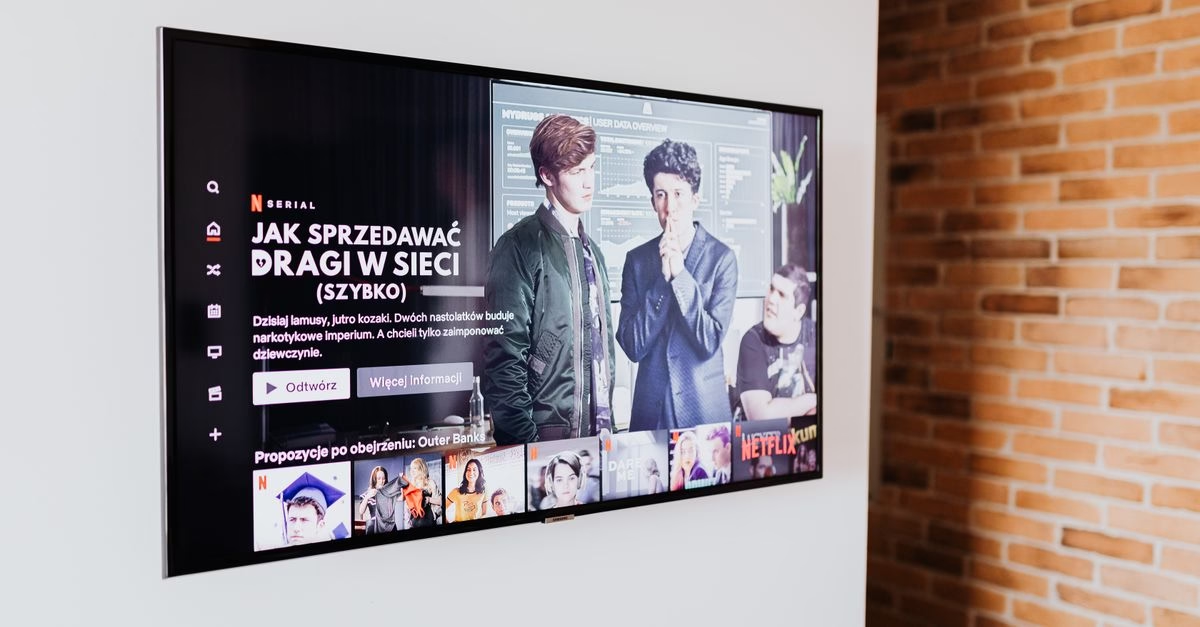
The Aggressive Auto-Brightness Glitch
Many users have reported that their smart televisions are making drastic adjustments to screen brightness without user input. While automatic brightness is designed to optimize viewing based on ambient light, it often malfunctions by pushing brightness to extreme levels. This behavior can be jarring, especially when transitioning from a well-lit room to a darker environment or vice versa. The issue is not limited to a single brand but appears across various smart TV models, suggesting a systemic approach to light sensing that prioritizes maximum luminance over comfort.
Understanding the Sensor Logic
Modern smart TVs utilize ambient light sensors to detect the lighting conditions in the room. These sensors feed data to the picture processor, which then adjusts backlight intensity and gamma curves. The logic assumes that brighter environments require higher screen brightness to maintain contrast, while darker rooms allow for lower brightness to preserve black levels. However, the algorithm often lacks nuance. It may misinterpret shadows as low-light conditions, triggering a sudden spike in brightness. Alternatively, it might fail to account for direct light sources like lamps or windows, leading to inconsistent performance. The result is a display that feels unstable and visually fatiguing rather than adaptive and comfortable.
Impact on Visual Comfort and Health
The primary concern with erratic brightness adjustments is physical discomfort. Sudden changes in luminance can cause eye strain, headaches, and general fatigue during long viewing sessions. For individuals sensitive to light or those watching TV in low-light conditions, an overly bright screen can be particularly disruptive. Beyond health, the visual impact is significant. Extreme brightness washes out colors, reduces perceived contrast, and destroys the artistic intent of content creators who carefully calibrate their work. When a TV forces high brightness, it negates the benefits of HDR (High Dynamic Range) content, flattening the image and reducing detail in both highlights and shadows.

TCL 55' Class Q6 Series QLED Smart TV
Steps to Regain Control Over Your Display
Fixing this issue requires manual intervention through the TV’s settings menu. Most manufacturers provide options to disable or fine-tune automatic brightness features. Start by accessing the Picture Settings menu. Look for terms such as ‘Ambient Light Sensor,’ ‘Auto Brightness,’ ‘Eco Mode,’ or ‘Energy Saving.’ Disable these features entirely if available. If full disabling is not possible, look for sensitivity controls to reduce the range of adjustment.

Additionally, consider switching to a Picture Mode that is less aggressive, such as ‘Movie’ or ‘Cinema,’ which often bypasses some automated enhancements. Regularly check for firmware updates, as manufacturers may release patches to refine sensor algorithms. Finally, manually set your preferred brightness and contrast levels once the automatic features are turned off to ensure consistency.
When Manual Fixes Fall Short
Not all solutions are equally effective across every device. Some older or budget-friendly models may lack granular control over brightness sensors, forcing users into a binary on/off choice that may not suit all lighting conditions. In rare cases, hardware defects in the light sensor itself can cause persistent errors that software settings cannot correct. Furthermore, disabling automatic brightness means the user must manually adjust settings if the room’s lighting changes significantly, such as turning on a lamp or opening curtains. This trade-off sacrifices convenience for precision. Users should also note that some energy-saving modes are tied to brightness controls, so disabling one may affect power consumption metrics displayed by the TV.
Prioritizing Comfort Over Automation
While automatic brightness aims to simplify the viewing experience, it often fails to deliver a consistent or comfortable image. By taking manual control of your TV’s settings, you can eliminate eye strain and enjoy content as intended. The process involves navigating to the picture menu, disabling aggressive auto-adjustment features, and setting stable baseline levels. Although this requires a bit more initial effort, the long-term benefit is a more enjoyable and less fatiguing home entertainment experience. As smart technology evolves, users should remain vigilant about default settings that prioritize automation over user preference, ensuring their viewing environment remains tailored to their needs.
Another critical factor often overlooked is the interaction between automatic brightness and specific content types. Streaming services frequently embed metadata that instructs the TV to adjust picture settings dynamically. When combined with ambient light sensing, this dual-layer automation can create conflicting signals. For instance, a dark scene in a movie might trigger the sensor to increase backlight intensity, while the content metadata simultaneously attempts to preserve deep blacks. This tug-of-war results in flickering or inconsistent luminance that no single manual setting can easily resolve. Users should be aware that even with auto-brightness disabled, some ‘smart’ features may still override manual preferences based on content recognition algorithms.
To further mitigate these issues, consider the placement of your television relative to light sources. Ambient light sensors are typically located at the top center of the bezel. If a lamp, window, or ceiling light shines directly on this area, the TV will interpret it as a bright environment and crank up the brightness accordingly. Repositioning the TV or adjusting room lighting to avoid direct hits on the sensor can significantly improve stability. Additionally, cleaning the sensor area regularly ensures that dust or smudges do not interfere with its readings, which can sometimes cause erratic behavior.
For those who cannot fully disable automatic features due to firmware restrictions, using external hardware solutions offers an alternative. Some users employ smart plugs or power strips to control the TV’s standby state, effectively forcing a reset of picture settings when the device powers on. While not a perfect solution, it can help establish a consistent baseline each time viewing begins. Ultimately, understanding the limitations of built-in automation allows viewers to make informed choices about their home theater setup, prioritizing visual fidelity and comfort over convenience.