After connecting the KOORUI 27E6CA over DisplayPort and spending time in its OSD, I understand the pitch. It puts a large curved VA panel and a high refresh rate on the desk without turning the setup into a spaceship cockpit.
Budget monitors always send a bill. Here, it shows up as 1080p resolution, modest brightness, limited ergonomics, and a few questions only longer use can answer. The first useful discovery was that this monitor does not improve when every setting is pushed to the ceiling.
Testing note: This review combines the Amazon Canada listing, KOORUI’s official specifications, available owner feedback, and hands-on configuration work. The final Cryovex score will follow longer-term testing, but the settings below reflect my actual AMD Software, Windows, and KOORUI OSD setup.
My Simple Take
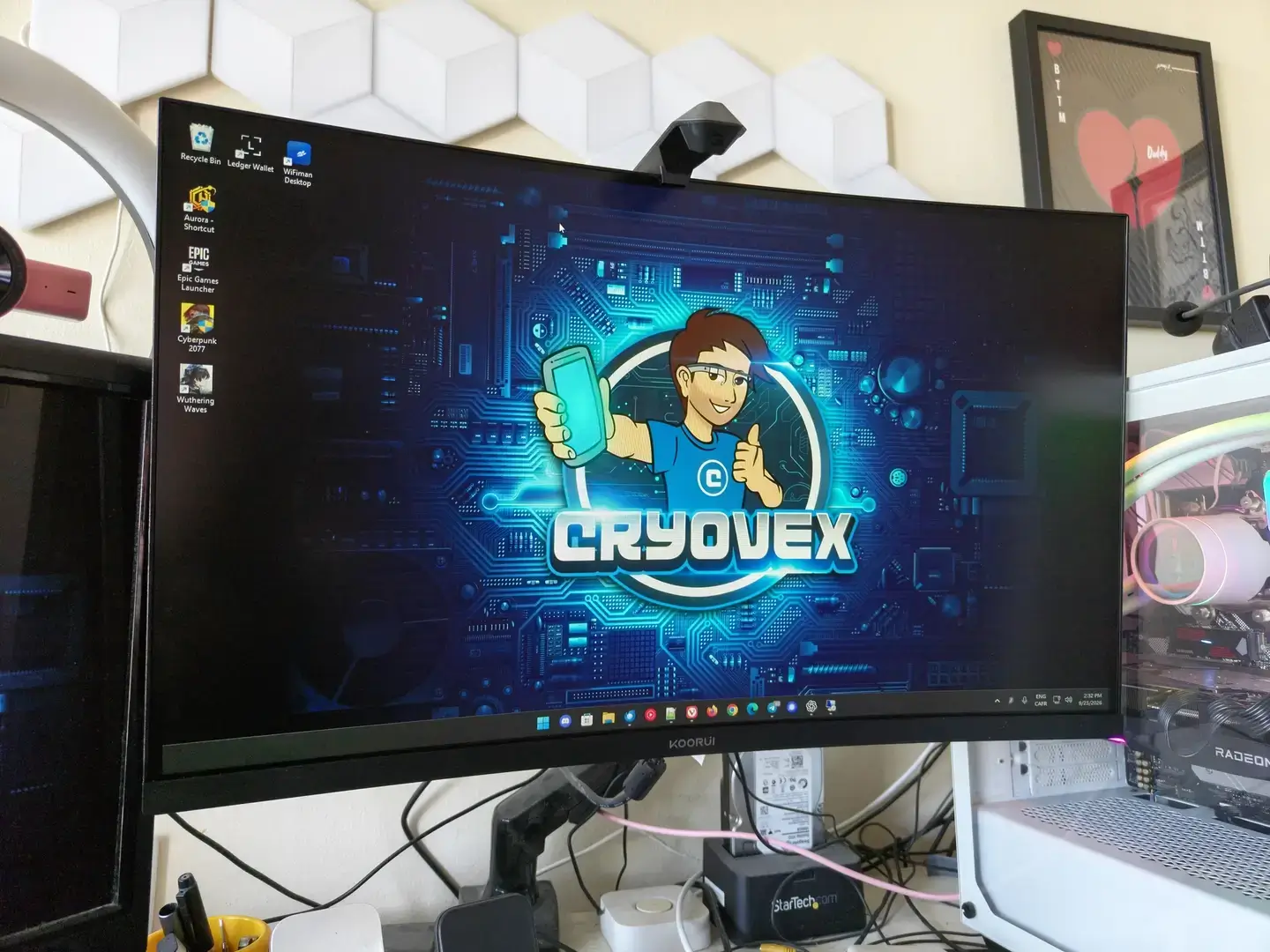
My short version is simple: the KOORUI 27E6CA makes the most sense as a low-cost PC gaming monitor for someone who wants a big screen and a fast refresh rate without spending hundreds more. Its 180Hz mode is the headline feature, and the 1080p resolution gives a reasonably capable gaming PC a better chance of reaching high frame rates.

Here is where I part ways with the usual spec-sheet warning. Yes, 1080p at 27 inches has a lower pixel density than 1440p. In actual use, after dialling in the panel and running Windows 11’s ClearType text tuner, I cannot see a meaningful loss of crispness from a normal desktop distance. Text, interface elements, and content look clean. The games are colourful, immersive, fluid, and clear, which is exactly what I want from a gaming monitor.
I know some readers will judge me for saying this, but 1080p feels like the sweet spot for my desktop PC gaming setup. A 4K gaming monitor strikes me as excessive here. The extra pixels cost more, demand more from the graphics card, and do not give me enough visible benefit once the image is smooth and properly tuned. That is my experience, not a universal law, but it is why the 27E6CA’s Full HD panel does not bother me.
At the Amazon Canada price observed during research, the 27E6CA is interesting. At a much higher price, the compromises become harder to forgive. This is a monitor to buy on value, not prestige.
KOORUI 27E6CA: The Specifications That Matter
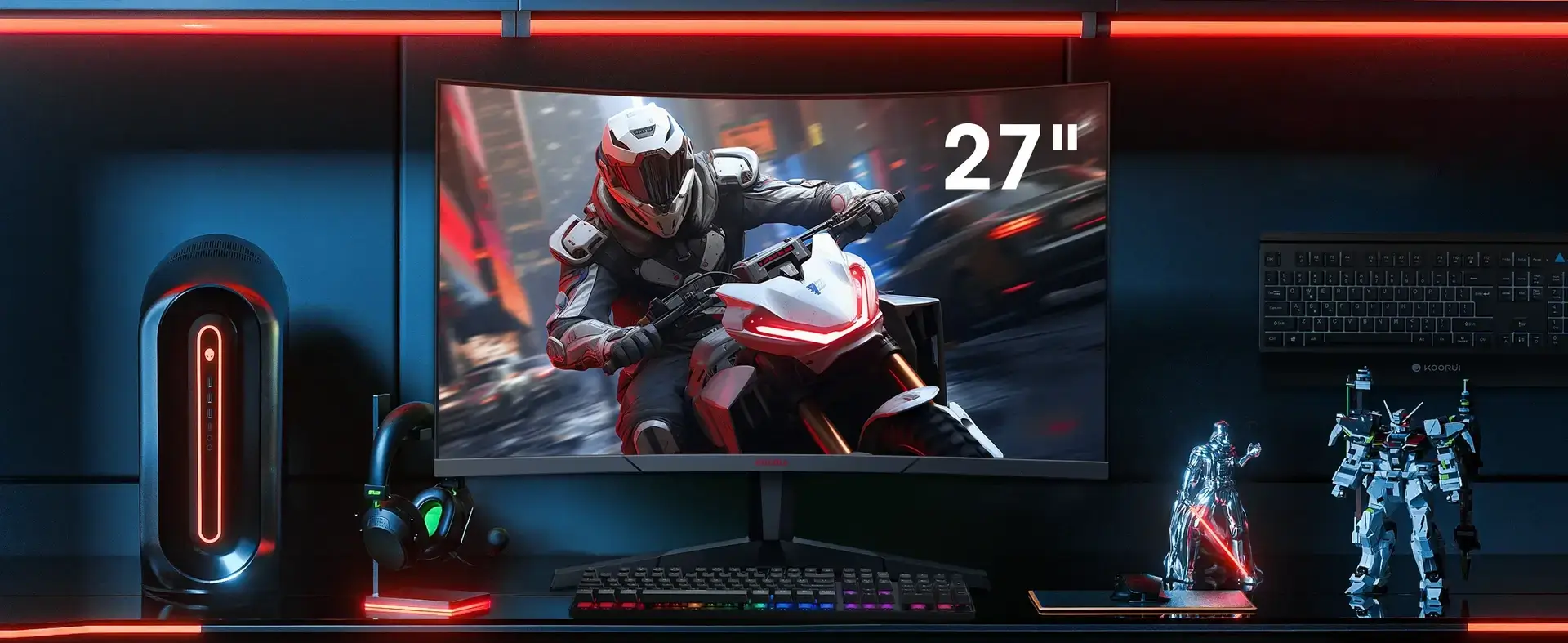
The 27E6CA uses a 27-inch VA panel with a 1920 × 1080 resolution, 180Hz refresh rate, 1500R curve, and claimed 1ms GTG response time. KOORUI lists the response figure with overdrive settings, so it is a manufacturer claim rather than an independent measurement of every pixel transition.
The rest of the specification sheet is solid for the price:
- 3000:1 claimed contrast ratio
- 250 cd/m² claimed brightness
- 99% sRGB and 90% DCI-P3 colour coverage
- 178-degree viewing angle
- Adaptive Sync, with FreeSync and G-Sync compatibility listed
- HDR10 support in the Amazon product description
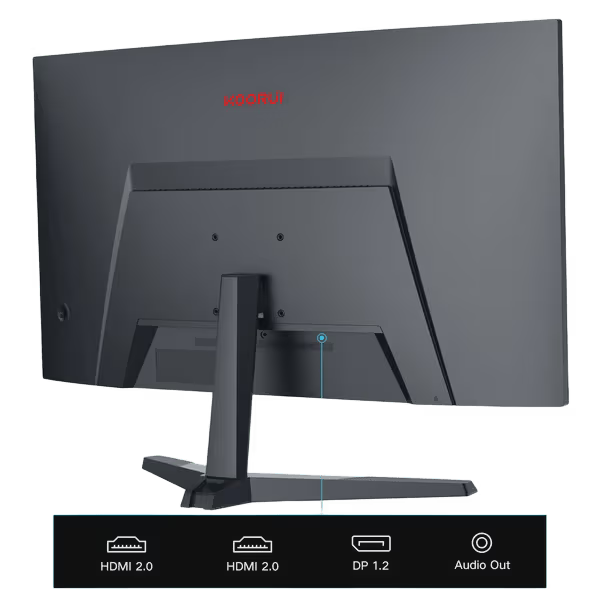
- Two HDMI 2.0 ports, DisplayPort 1.2, and audio out
- VESA 100 × 100 mounting
- Tilt adjustment from roughly -5 to 15 degrees
- No built-in speakers
That is a respectable feature list, but specifications tell only half the story. A monitor can advertise 180Hz and 1ms response time while still showing ghosting, overshoot, or uneven motion at certain refresh rates. That is where the OSD settings start to matter.
Design and Setup: Curved, Simple, and Sensible
The 1500R curve is gentle enough for everyday use but noticeable enough to give the display more presence. It suits games, racing titles, and movies particularly well. Your spreadsheet will remain a spreadsheet, thankfully.
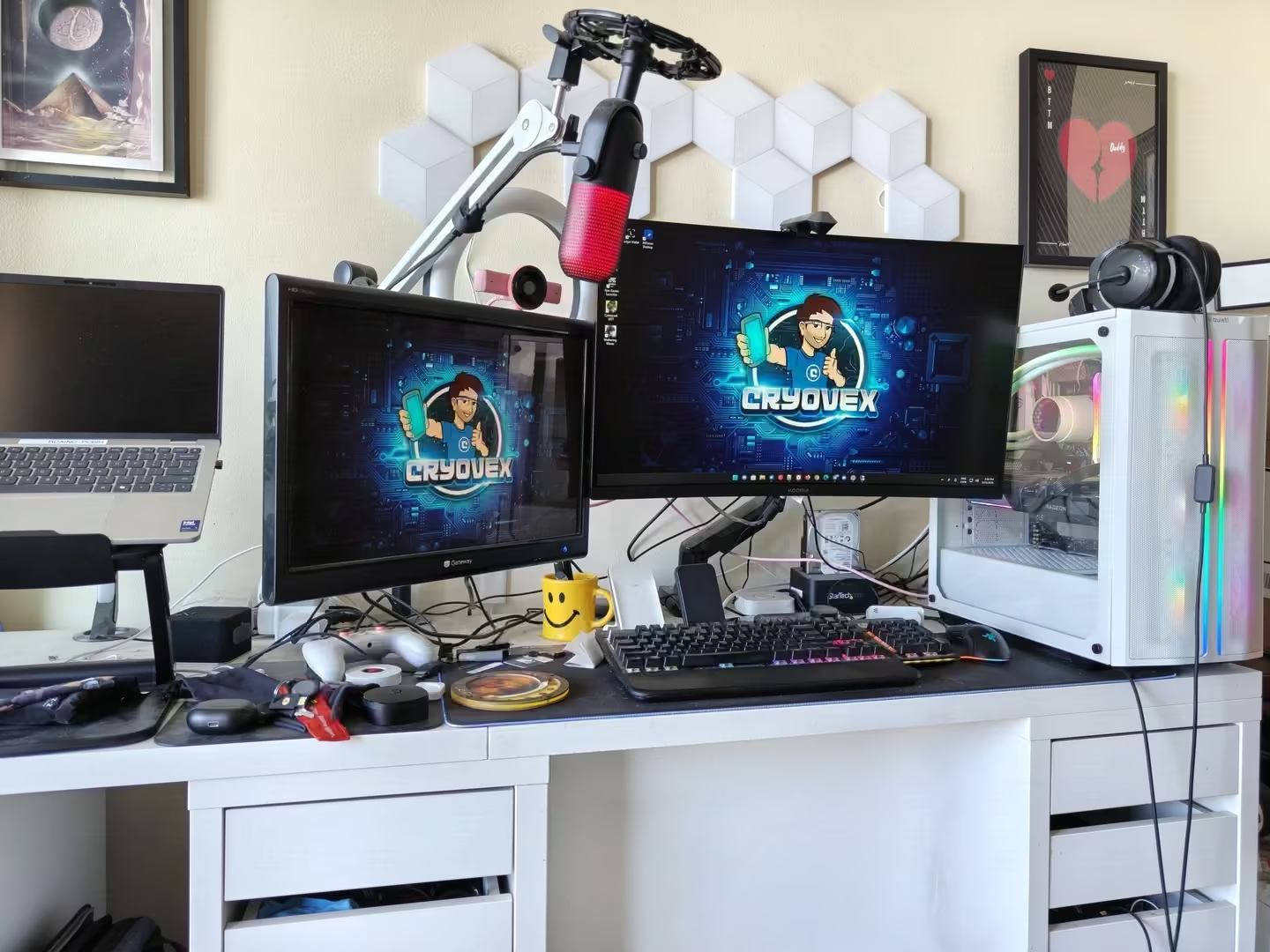
I did not use the included stand. I mounted the 27E6CA on a swivel arm instead, which gives me much better control over tilt and screen positioning. It also looks cleaner on the desk. Buyers using the stock stand should know that it offers basic tilt adjustment, not the height, swivel, or pivot movement found on more expensive gaming monitors. The VESA mount makes the upgrade possible, provided you already have a compatible arm or wall mount.
KOORUI lists a head-only weight of about 3.5 kilograms and a total product weight of about 4.22 kilograms without packaging, making arm mounting fairly manageable. Confirm the included screws and arm compatibility first.
There are no built-in speakers. PC players may not care, but console users and movie watchers will need headphones or external speakers.
Gaming at 180Hz: The Main Reason to Buy It
The move from 60Hz to 180Hz can feel dramatic. Menus scroll more cleanly, camera movement looks smoother, and fast games become easier to follow. The benefit is clearest in games such as Valorant, Counter-Strike 2, Fortnite, Overwatch, and Rocket League. The panel still needs sensible tuning to deliver that clean motion.
The 27E6CA’s 1080p resolution helps here. Rendering Full HD takes less work than rendering 1440p, so a mid-range graphics card has a better chance of reaching high frame rates. A demanding game running at 70 frames per second cannot become a 180Hz experience because the monitor says so.
Adaptive Sync should match the display’s refresh rate to the graphics card’s output, reducing tearing and distracting judder. The result still depends on the GPU, drivers, game, cable, and usable variable-refresh range. Helpful, not magic dust.
The VA panel brings stronger contrast than many entry-level IPS displays, which helps dark scenes and movies. The trade-off is familiar: VA panels can show dark-level ghosting or black smearing when bright objects cross dark backgrounds.
The advertised 1ms figure does not settle that question. Overdrive can improve response in one mode and create overshoot in another. In my setup, stepping the response-time control down from Fastest removed the purple and white coronas behind moving dark elements. That matters more than the number on the box.
KOORUI 27E6CA Best Settings for 180Hz Gaming
My connection is DisplayPort, with Windows and AMD Software set to native 1920 × 1080 at 180Hz. In AMD Software, I enabled Adaptive Sync Compatible to reduce tearing and micro-stutter, then selected RGB 4:4:4 Pixel Format PC Standard (Full RGB) to preserve the full 0–255 range.
I left DisplayColourr Enhancement disabled. Driver-level colour “help” is rarely helpful when the goal is a clean signal.
On the KOORUI OSD, these were my starting settings:
- Sharpness: 9
- Brightness: 45
- Contrast: 50
- DCR: Off
- Gamma: Gamma2
- HDR: Off for standard sRGB content
- Aspect: Auto
- Adaptive-Sync: On
- MPRT: Off
- Dark Field Bright Effect: 0
- Scenario Mode: Standard
- Colour Mode: User
- Input: DP
Sharpness 9 was the worthwhile adjustment. Setting it to 10 created bright halos around high-contrast white text. Dropping it one step kept text clean without softening the desktop. Brightness 45, contrast 50, and Gamma2 gave the panel a more comfortable balance.
HDR stayed off for ordinary desktop and sRGB gaming. On a 250-nit panel, forced HDR can make standard content look flatter. MPRT also stayed off to avoid strobing, brightness loss, and flicker. I disabled the crosshair and timer overlays because my monitor doesn’t need to play referee.
These are starting points, not a factory calibration certificate. Room lighting, hardware, games, and personal preference all matter. They give anyone searching for KOORUI 27E6CA best settings a practical place to begin.
Is It Good for Work and Everyday Use?
Yes, with one qualification: this is a gaming monitor first. The 27-inch size gives you room for browsers, documents, Discord, and multitasking. Flicker-free and low-blue-light modes may help during long sessions, but they cannot replace sensible breaks and decent room lighting.
On paper, the panel’s roughly 82 pixels per inch looks like a weakness beside a 27-inch 1440p display. In practice, Windows 11’s ClearType tuning made the text and desktop elements look crisp and controlled on my system. A 1440p monitor still gives you more workspace, but I would not reject the KOORUI simply because it is 1080p.
Brightness is another limit. The claimed 250 nits is ordinary SDR territory. It should suit a normal room, but it is not built for direct sunlight or dramatic HDR. Keep expectations grounded.
Price and Value in Canada

KOORUI 27 Inch Curved Gaming Monitor, 180Hz 1ms 1080P 1500R, Adaptive Sync
At the time of research, Amazon Canada showed the KOORUI 27E6CA at CA$159.99, with a 4.4-star rating from roughly 2,076 ratings and a “100+ bought in past month” signal. Amazon pricing, stock, delivery dates, and review counts change, so treat those numbers as a snapshot rather than a promise.
At around $160 to $200, the 27E6CA has a clear argument: large screen, high refresh rate, good contrast, Adaptive Sync, and enough ports for a basic PC or console setup. It becomes less compelling when the price moves toward $300 or more. At that point, a 27-inch 1440p display or a better-supported IPS gaming monitor deserves a serious look.
The return policy matters as much as the sale price. A low-cost monitor is not a bargain if a defect turns into a month-long support adventure. Check the seller, Canadian return terms, warranty coverage, and shipping details before buying.
Other Monitor Options
Related Posts

Who Should Buy the KOORUI 27E6CA?
Buy it if you want a budget-friendly 27-inch PC gaming monitor, play mostly at 1080p, have hardware that can push high frame rates, and prefer strong VA contrast over premium ergonomics.
It is also a sensible choice as a secondary gaming display, a first upgrade from 60Hz, or a larger screen for casual gaming and media. The 180Hz refresh rate is most valuable to PC players. Consoles may run at 120Hz in supported games, but they will not use the monitor’s full refresh-rate ceiling.
Skip it if you specifically need a 1440p or 4K workspace, strong HDR, built-in speakers, USB-C, height adjustment, or a display designed for professional colour work. Competitive players who are sensitive to ghosting should also wait for the full motion test or choose a monitor with well-documented response performance.
FAQ
Is the KOORUI 27E6CA a true 180Hz monitor?
The specific Amazon listing and KOORUI’s 27E6CA technical table identify this version as 180Hz. Use DisplayPort or the correct HDMI connection, then confirm the setting in Windows or your graphics card control panel.
What are the best KOORUI 27E6CA settings?
Start with DisplayPort at 1920 × 1080 and 180Hz, Adaptive Sync enabled in AMD Software and the monitor OSD, Full RGB 4:4:4, Sharpness 9, Brightness 45, Contrast 50, Gamma2, DCR off, HDR off for standard content, MPRT off, and Response Time below Fastest. Use Standard or User colour modes and adjust from there.
Is 27-inch 1080p good for gaming?
It can be. The larger screen is immersive and easier for a budget graphics card to drive than 1440p. The compromise is softer text and less detail.
Does the KOORUI 27E6CA have speakers?
No. The listing identifies audio out, but not built-in speakers. Use headphones, powered speakers, or your computer’s audio output.
Is the KOORUI 27E6CA good for PS5 or Xbox?
It should suit 1080p gaming and may support 120Hz where the console and game allow it. The extra headroom is mainly useful for PC gaming. Confirm console VRR compatibility before buying.
The Verdict: A Good Deal at the Right Price
The KOORUI 27E6CA is not trying to be a luxury monitor. It is trying to put a big curved screen and a fast refresh rate on a modest budget. That mission makes sense.
My recommendation is straightforward: buy it at the low street price if you want affordable PC gaming and can live with the trade-offs. The basic stand, modest brightness, and still-unsettled motion performance keep it from being an automatic recommendation for everyone, but the 1080p image is not a deal-breaker in my setup.
If you want affordable PC gaming and can live with those trade-offs, the 27E6CA deserves a place on your shortlist. Just buy it at a genuinely low price, confirm the return policy, and remember that a fast refresh rate is only as useful as the graphics card driving it.