Within Google’s Android environment you have the ability to create a guest user on the device. This allows you to hand your phone over to someone else if they need to do anything without compromising your privacy. Who wants to have someone go through their devices and read text, emails or view pictures they shouldn’t be looking at?

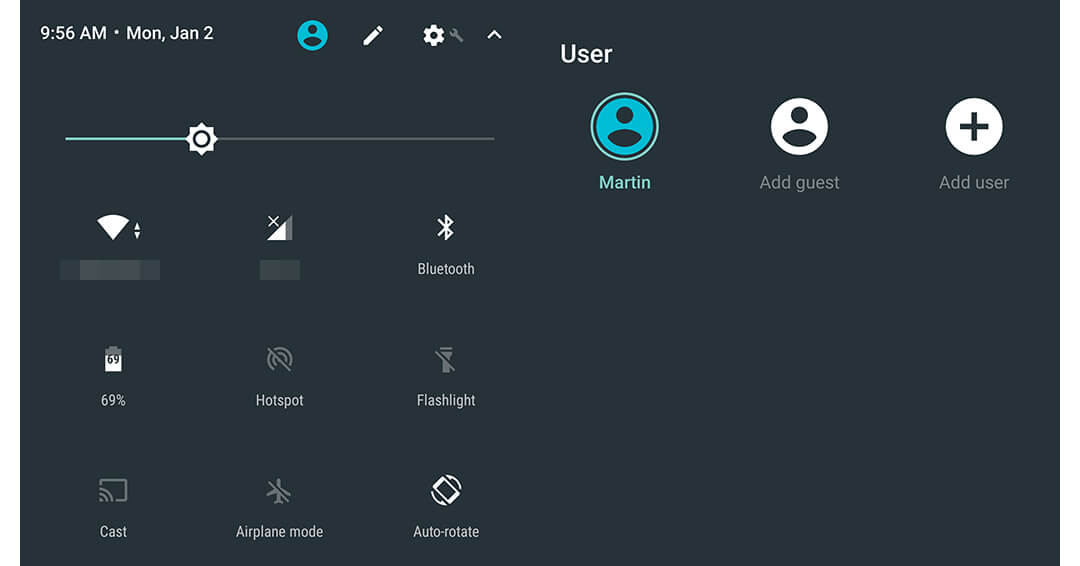
Use the “Guest Mode” to block anyone from accessing your private information while they handle your phone. This limits their usage and access.
- Swipe down to open “Quick Settings.”
- Tap the user icon on the top right and select “Add a Guest” to start Google Guest Mode. Your phone will switch to the guest mode and your information will be protected.
- When you get your phone back, end the Guest Mode by tapping the user icon and selecting “Remove Guest.”
- Tap “Remove” to delete all apps and data from the guest’s session.
[embedyt] http://www.youtube.com/watch?v=uuEkxzaPEOo[/embedyt]