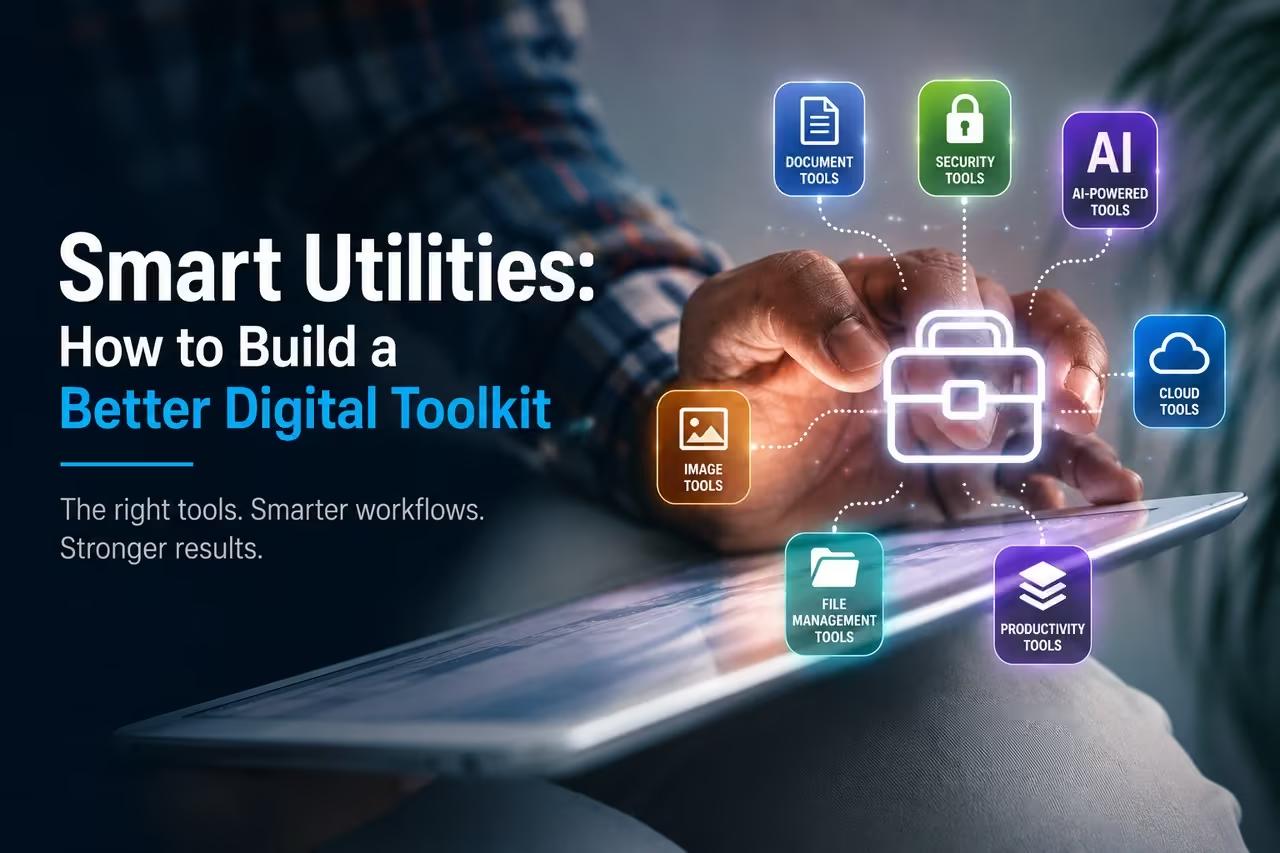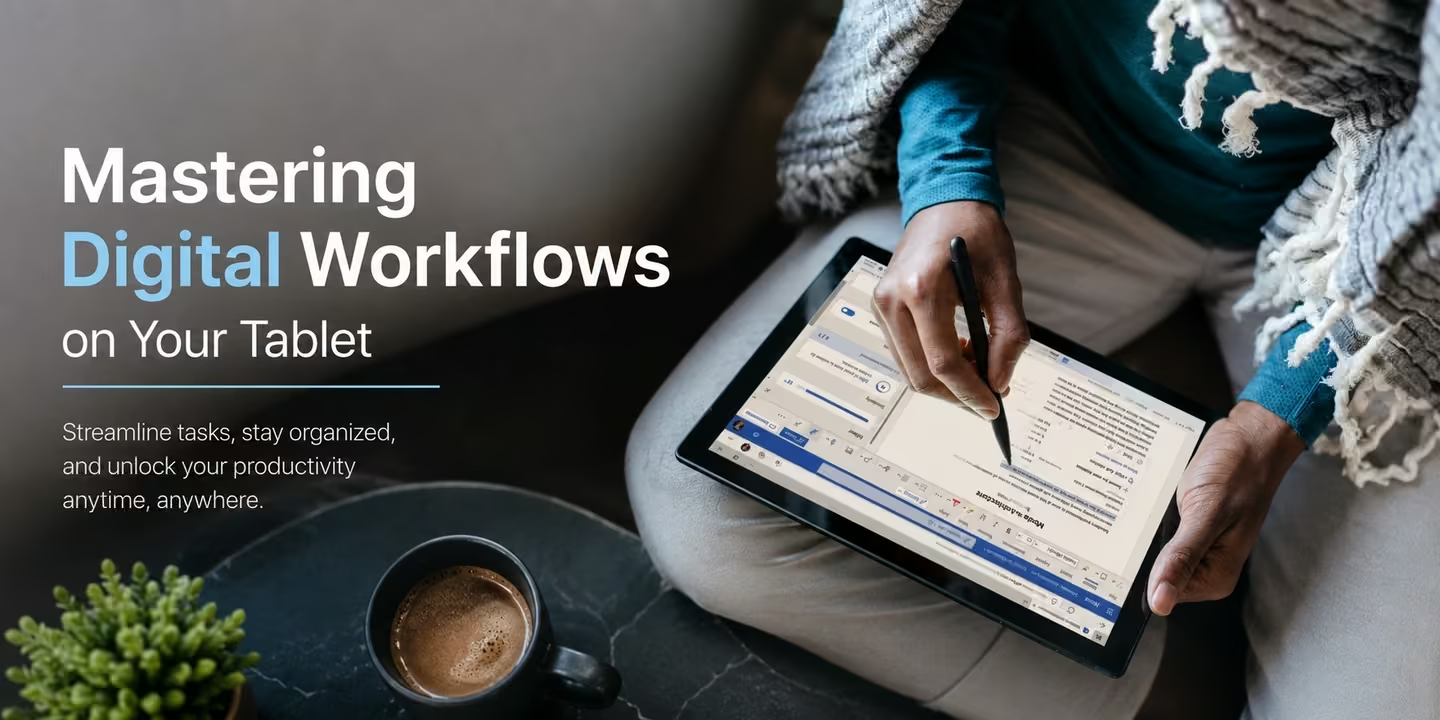
Tablets aren’t just for entertainment anymore. Today, these slim, powerful devices can handle tough professional and academic tasks, often replacing laptops for people who need portability and versatility. The trick to making them work for you isn’t just about the hardware; it’s about building a smooth digital workflow. Pick the right apps and get into smart habits, and your tablet can become your central hub for managing projects, creating content, and staying organized on the go.
This guide will show you how to master your digital workflow, from bringing physical documents into the digital world to syncing your work across all your devices without a hitch.
Tablets as Productivity Hubs
Modern tablets get their power from being portable, easy to use, and having strong processing capabilities. Unlike a laptop, a tablet is light enough to carry in a bag or even by hand, and its battery often lasts a whole workday. This makes it perfect for professionals on the move, students going between classes, or anyone who needs to work away from a desk. For students, choosing the right device and accessories can make an even bigger difference.
The touch-first interface, especially with a stylus, opens up new ways to interact with your work. You can sketch ideas, write notes directly on documents, or navigate complex software with just a tap. This hands-on experience can feel more natural and engaging than using a mouse and keyboard for certain tasks.

To truly turn your device into a productivity powerhouse, you need to think beyond its basic setup. The goal is to create a system where your tablet works seamlessly with your other devices, like your phone and computer. This means choosing apps that play well together and using cloud services to make sure your files are always there when you need them. With a little planning, you can build a powerful ecosystem that boosts your efficiency. There are also many ways to improve your 10-inch tablet productivity with the right setup and accessories.
Bringing Paper into Your Tablet Workflow
One of the biggest challenges in keeping a fully digital workflow is dealing with all the paper that still pops up in our lives. Contracts, receipts, business cards, whiteboard notes, and signed forms can quickly pile up and disrupt your digital flow. The best way to handle this is to digitize these documents as soon as you get them, and your tablet is perfect for the job.
Your tablet’s camera lets you capture high-quality images of any document. But just taking a photo isn’t enough. To make these documents truly useful, you need to turn them into clean, searchable PDFs. A dedicated iPhone and iPad scanner app can do this automatically. These apps are designed to spot document edges, automatically crop and fix perspective, and improve the image for maximum clarity. The result is a professional-looking digital file that’s much better than a standard photo.
Once digitized, these documents become part of your digital world. You can file an invoice in a project folder, save a receipt for an expense report, or instantly share a signed contract with a client. The text inside these scanned documents can also be made searchable using Optical Character Recognition (OCR) technology. This means you can find a specific document later just by typing a keyword. This simple step gets rid of physical clutter and makes sure important information is always stored securely and easy to find.
Essential Apps for Tablet Productivity
Your tablet really shines when you use the right apps. The App Store is full of tools designed to make every part of your work easier, but a few key categories are essential for building a strong productivity system.
- Note-Taking and Idea Management: Digital note-taking apps have become incredibly advanced. Tools like GoodNotes, Notability, and Microsoft OneNote let you combine typed text, handwritten notes, images, and audio recordings all in one document. They offer a flexible space for brainstorming, meeting notes, or class notes. Many of the best note-taking apps also have powerful organization systems, allowing you to create digital notebooks with searchable tabs.
- Project and Task Management: Keeping track of deadlines and collaborators is simple with project management apps. Services like Trello, Asana, and Monday.com offer visual boards that are perfect for a tablet’s touch interface. You can drag and drop tasks between columns, assign due dates, and talk to team members, all from one dashboard.
- Document Creation and Editing: For more traditional office tasks, the mobile versions of established software suites are essential. Both Microsoft 365 (Word, Excel, PowerPoint) and Google Workspace (Docs, Sheets, Slides) offer full-featured apps optimized for tablets. You can create reports, build spreadsheets, and design presentations with almost all the same functions as their desktop versions.
Editing and Annotating Documents
Once you’ve created or digitized your documents, the next step is to work with them. Tablets are excellent for editing and annotating, offering a more direct and intuitive experience than a traditional computer. A high-resolution screen combined with a responsive stylus changes how you review and give feedback on documents.
For example, instead of typing comments in a sidebar, you can use a stylus to circle a paragraph and write “Please rephrase this” directly in the margin, just like you would on paper. This is especially helpful when collaborating on reports, academic papers, or creative briefs. Most tablets have built-in markup tools that let you draw, highlight, and add text to PDFs and images without needing a separate app.
For more advanced needs, dedicated PDF editor apps give you even more control. You can use them to:
- Fill out and sign forms digitally, so you don’t have to print, sign, and scan.
- Rearrange or delete pages within a PDF.
- Redact sensitive information before sharing a document.
- Add bookmarks and comments to long research papers or textbooks.
This capability is a core reason why many professionals are integrating tablets into existing workflows. Being able to quickly mark up a file and send it back to a colleague saves time and makes the feedback process much smoother.
Syncing Across All Your Devices
A digital workflow only works if your information is available wherever you need it. The final and most crucial part of your tablet productivity system is seamless synchronization. Cloud storage services are the backbone of this process, acting as a central place for all your files.
Services like Apple’s iCloud Drive, Google Drive, Dropbox, and Microsoft OneDrive are deeply integrated into tablet operating systems. When you save a file from any app, you can choose to save it directly to your preferred cloud service. From that moment on, any changes you make on your tablet are automatically synced to the cloud and sent to your other connected devices, like your smartphone and laptop. This idea of file syncing and file sharing is fundamental to modern productivity.
Imagine this: You’re in a meeting and take handwritten notes on your tablet using GoodNotes. Those notes automatically save to your iCloud Drive. Later, at your desktop computer, you open the GoodNotes app, and your meeting notes are already there, ready for you to drag key points into an email. Or you scan a multi-page contract on your iPad, and it instantly appears in your Dropbox folder on your Windows PC. This means you don’t have to manually transfer files via email or cables, ensuring you always have the most up-to-date version of your work at your fingertips.
By building your workflow around a reliable cloud service, you create a unified system where your tablet, phone, and computer work together as one powerful tool.
With the right apps and a commitment to a digital-first approach, your tablet can become much more than a portable screen. It can be the command center for your professional, academic, and creative life, offering a flexible and powerful way to get things done from anywhere.
FAQ
The FAQs below are designed to reinforce the article’s existing subject matter rather than introduce unrelated topics.
What is a digital workflow on a tablet?
A digital workflow on a tablet is a system for completing and managing tasks digitally using apps, cloud storage, document scanning, note-taking, file organization, and other productivity tools. A well-designed workflow allows files and information to move smoothly between your tablet, phone, and computer.
Can a tablet be used for professional work?
Yes. Modern tablets can handle many professional tasks, including creating and editing documents, managing projects, taking notes, scanning paperwork, annotating PDFs, attending meetings, and accessing cloud-based files. The best setup depends on the applications and accessories required for your work.
How can I make my tablet more productive?
Start by choosing apps for your main tasks, such as note-taking, document editing, project management, PDF handling, and cloud storage. Organize files consistently and enable synchronization so documents created or edited on your tablet remain accessible from your other devices.
Can I scan documents with a tablet?
Yes. A tablet’s camera can be used with a document-scanning app to capture paper documents and convert them into digital files. Many scanning apps can detect document edges, correct perspective, improve readability, and create PDFs.
What is OCR, and why is it useful when scanning documents?
Optical Character Recognition (OCR) is technology that recognizes text within scanned documents or images. OCR can make the text in scanned files searchable, helping you locate documents later using names, phrases, or other keywords contained in them.
What types of apps are useful for tablet productivity?
Useful categories include note-taking apps, project and task management tools, office applications, document scanners, PDF editors, and cloud storage services. The article discusses examples such as GoodNotes, Notability, Microsoft OneNote, Trello, Asana, Microsoft 365, and Google Workspace.
Can I edit and annotate PDFs on a tablet?
Yes. Tablets can be particularly convenient for PDF annotation because you can highlight text, add comments, draw, or write directly on documents, especially when using a stylus. Depending on the PDF application, additional features can include filling and signing forms, rearranging pages, redaction, and bookmarks.
How do I sync files between my tablet, phone, and computer?
Use a cloud storage service that supports your devices and applications. Services such as iCloud Drive, Google Drive, Dropbox, and Microsoft OneDrive can synchronize files so that changes made on one connected device become available on the others.