
Finding deleted files is only part of the job for data recovery software. The recovered copies also need to open correctly, and locating the right files among hundreds of scan results should be manageable.

In this Disk Drill data recovery review, we look at how the software performs in practice, how easy its recovery tools are to use, and whether the Pro version justifies its price. We pay particular attention to whether recovered files open correctly and how easily we can find and save them. We also consider the additional tools and licensing limits when assessing its value.
What Does Disk Drill Offer?
Disk Drill is file recovery software developed by CleverFiles for Windows and macOS. It can search for lost data on internal and external HDDs, SSDs, USB flash drives, and memory cards. Supported file systems include NTFS, FAT32, and exFAT, alongside several formats used by macOS and Linux.
The program can recover data after deletion, formatting, or file system corruption, provided the device remains readable and the data is still present. It also supports compatible RAID arrays and NAS devices, including network access through SSH. In our view, this range makes it useful beyond straightforward recovery from a USB drive.
Its scanning methods include Quick Scan, which uses file system records to locate deleted files, and Deep Scan, which searches more thoroughly, including by recognizable file patterns. Universal Scan combines the available methods for the selected drive. Advanced Camera Recovery is a separate module for reconstructing fragmented recordings from supported cameras and drones. It works with the original camera storage or its disk image and is particularly relevant to recovering videos from SD cards.
Additional tools include byte-to-byte imaging, S.M.A.R.T. drive health monitoring, disk cleanup, and data protection. We discuss their practical value later in this review.
Is Disk Drill Safe to Use?
Disk Drill is a legitimate data recovery application developed by CleverFiles for Windows and macOS. Downloading it from the official website helps ensure that the installer comes from the developer. Scanning and previewing files do not require a Pro purchase, so there is also an opportunity to inspect the results before deciding whether to pay.
Using Disk Drill safely also means protecting the data on the source drive. Install the program elsewhere if that drive contains the missing files, and save recovered copies to a separate device. We consider the preview particularly useful here: it lets us inspect files within the program before choosing what to restore.
Interface and Recovery Workflow
Disk Drill’s Windows interface is organized around a clear recovery workflow, with storage devices, saved sessions, and additional tools grouped separately. We find this separation useful: the recovery functions are easy to locate, while the extra tools remain accessible without crowding the main view.
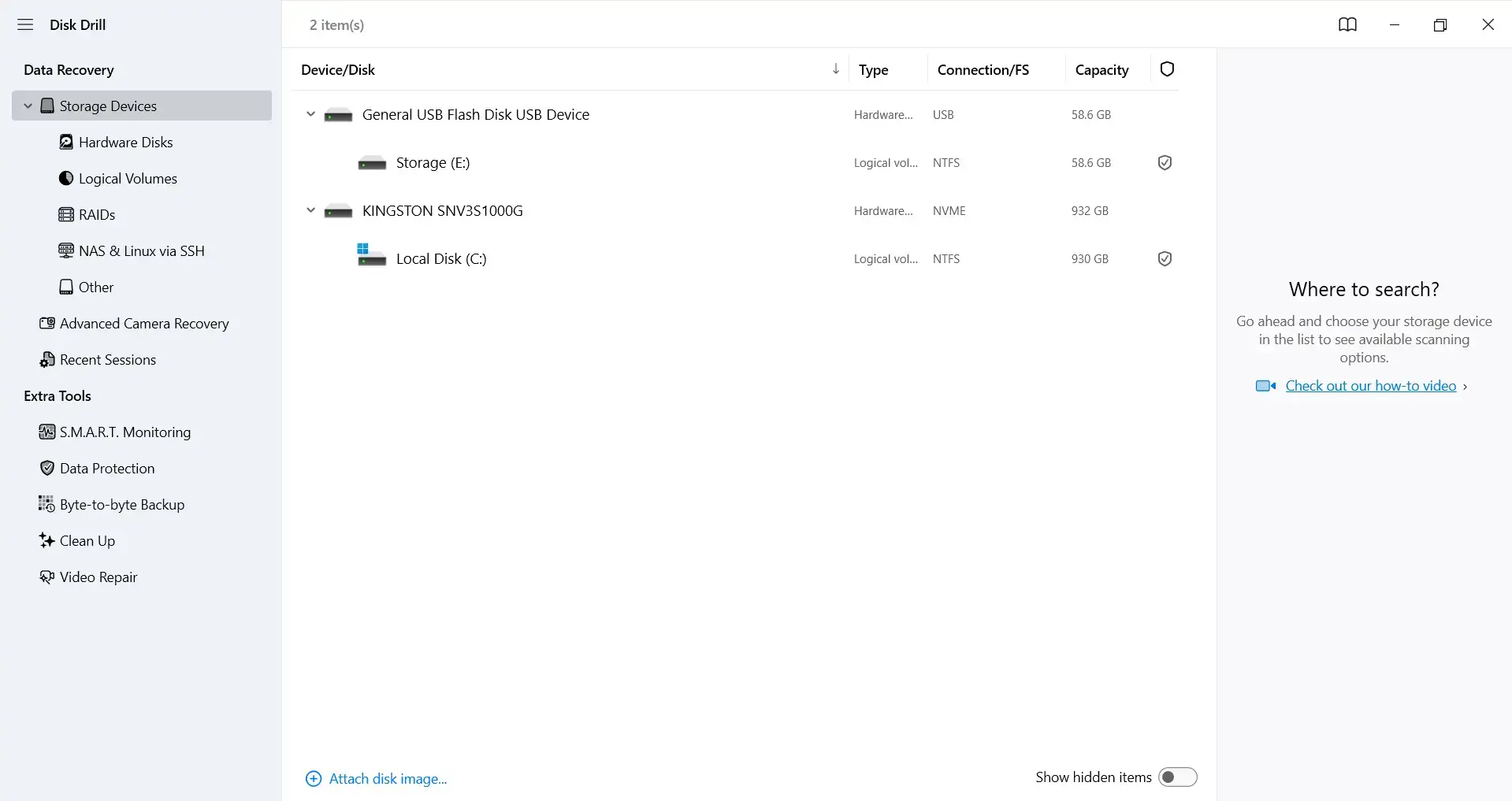
Disk Drill’s storage device list shows the USB flash drive and internal SSD available for scanning.
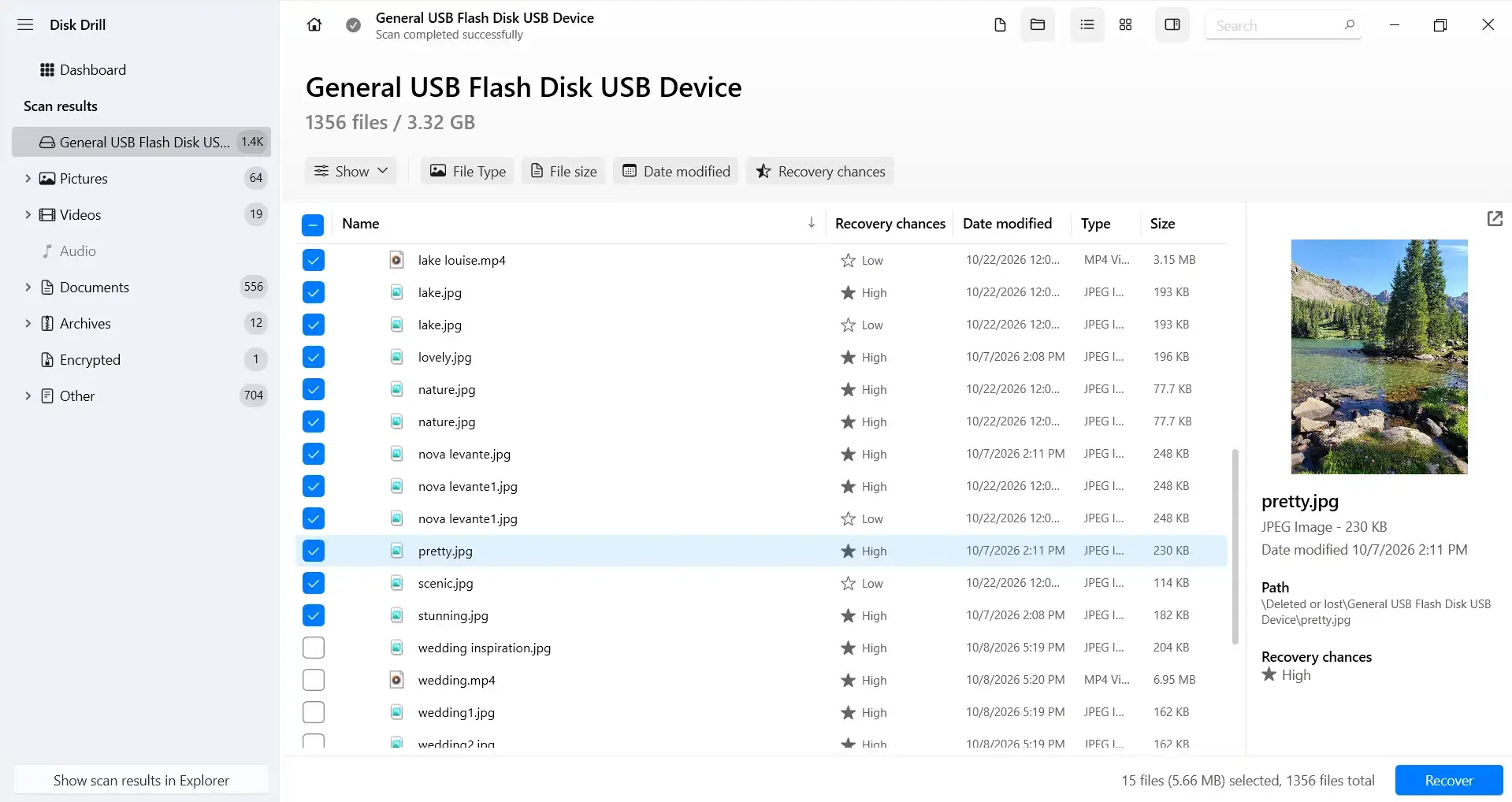
We particularly like the results browser. File categories and filters help narrow down long lists, while the integrated preview makes it easier to identify relevant files before recovery. For photo recovery software, this is especially helpful when several images have similar names.
In our view, the interface presents detailed recovery information clearly. The number and total size of selected files remain visible, making it clear what will be saved before recovery begins.
Recovery Performance: Real-World Tests
In our tests, we used Disk Drill 6.3.1398.0 Basic on Windows 11 and an NTFS-formatted USB flash drive with a displayed capacity of 58.5 GB. We saved the recovered files to an internal SSD and checked two scenarios: deletion and quick formatting.
Recovering Deleted Photos and Videos
We first scanned a flash drive from which JPG and MP4 files had been deleted. The total number of files originally deleted was not recorded, so this test measures recovery of a selected group rather than a recovery rate for the entire drive. The device appeared in Disk Drill as “General USB Flash Disk USB Device.”
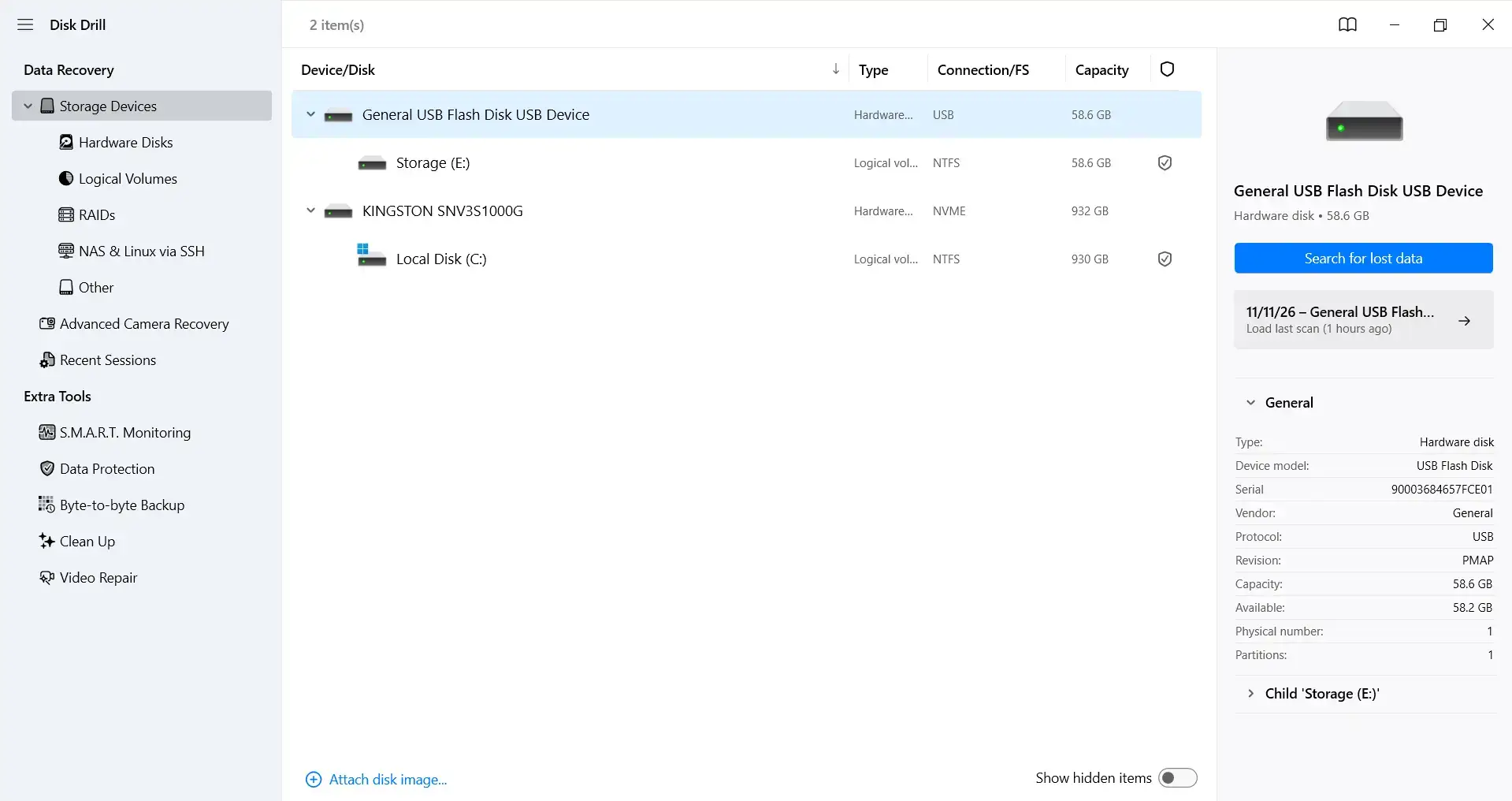
The test USB drive appears in Disk Drill with its capacity and scan controls.
Scanning took about 30 minutes. Before deletion, the drive contained approximately 3.3 GB of data, and the scan identified a similar amount, as shown in the results below:
Result category | Entries found | Reported size |
Deleted or lost | 766 | 458 MB |
Reconstructed | 562 | 2.54 GB |
Existing | 28 | 335 MB |
Of the results, 766 entries appeared under Deleted or lost and 562 under Reconstructed; another 28 were existing files. We then selected 15 JPG and MP4 files to restore and check. All 15 were recovered and opened successfully, giving a 100% success rate for the checked selection. The larger scan totals can include older files and repeated entries, so they do not provide an overall recovery percentage.
The results included recognizable filenames and recovery-chance ratings. Several filenames appeared more than once, and we found the preview helpful for identifying the intended images. A selected JPG displayed directly in the side panel alongside its size, path, and recovery estimate.
For photo recovery, we found this visual check especially useful. It lets us inspect an image before saving it without leaving the file list.
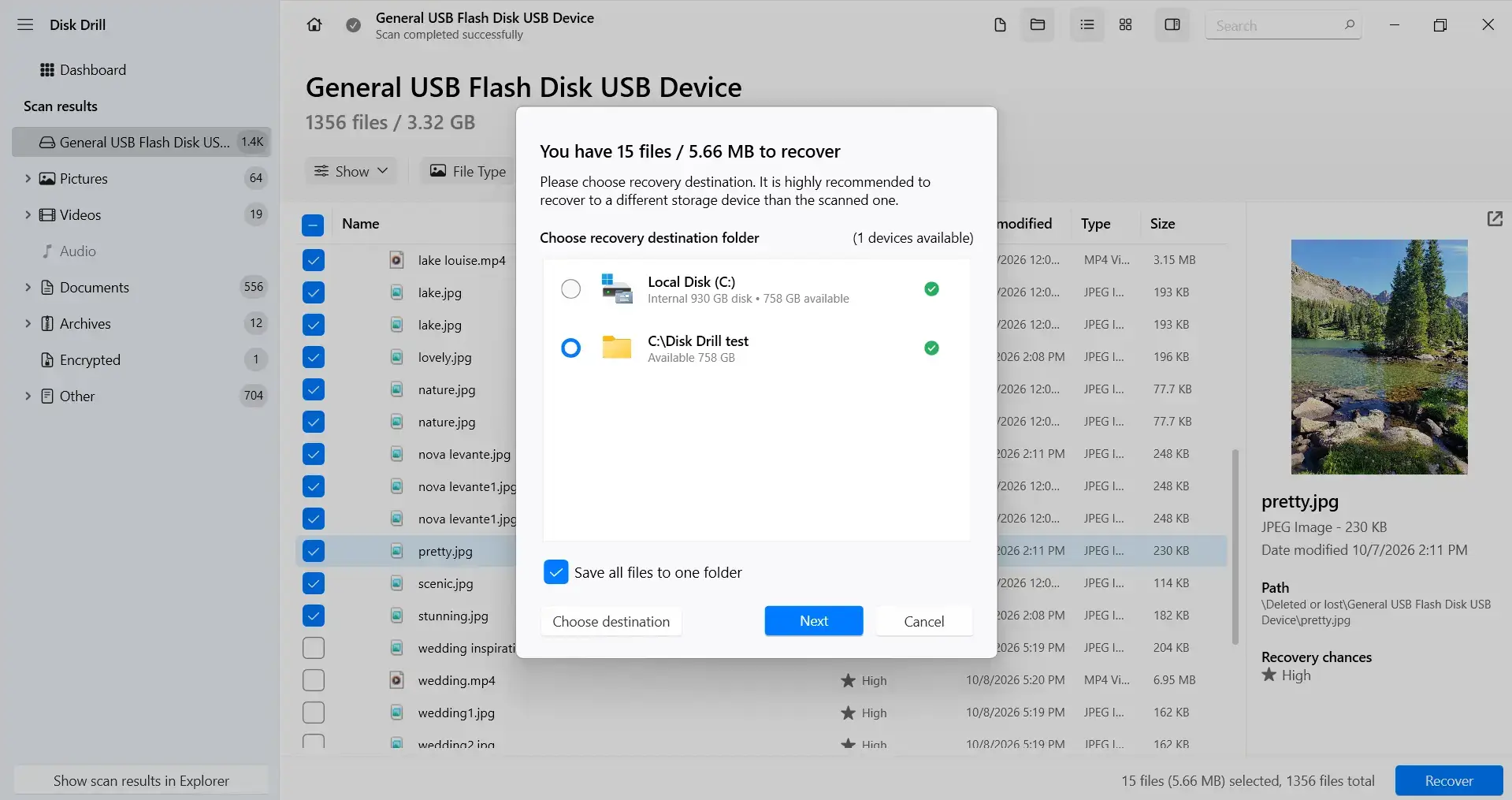
We saved the selected files to a new folder on the internal SSD to avoid writing recovered data back to the source. We found the destination dialogue straightforward: it makes the save location clear before recovery begins.
The program completed recovery of all 15 selected files. We then opened the recovered copies to check their contents.
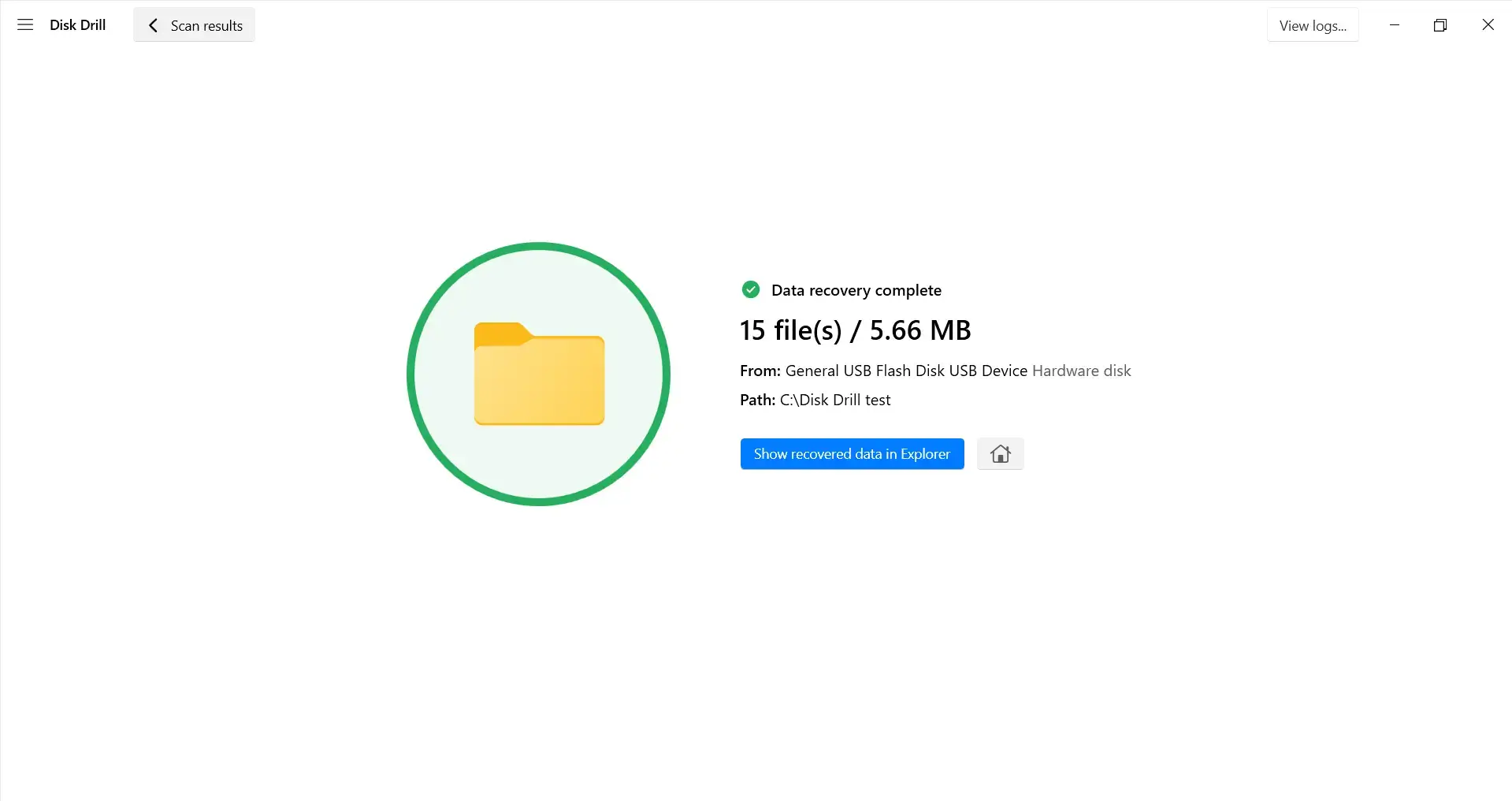
We could open the recovered JPG images and play the MP4 files without errors. All 15 files in the checked selection were therefore usable after recovery.
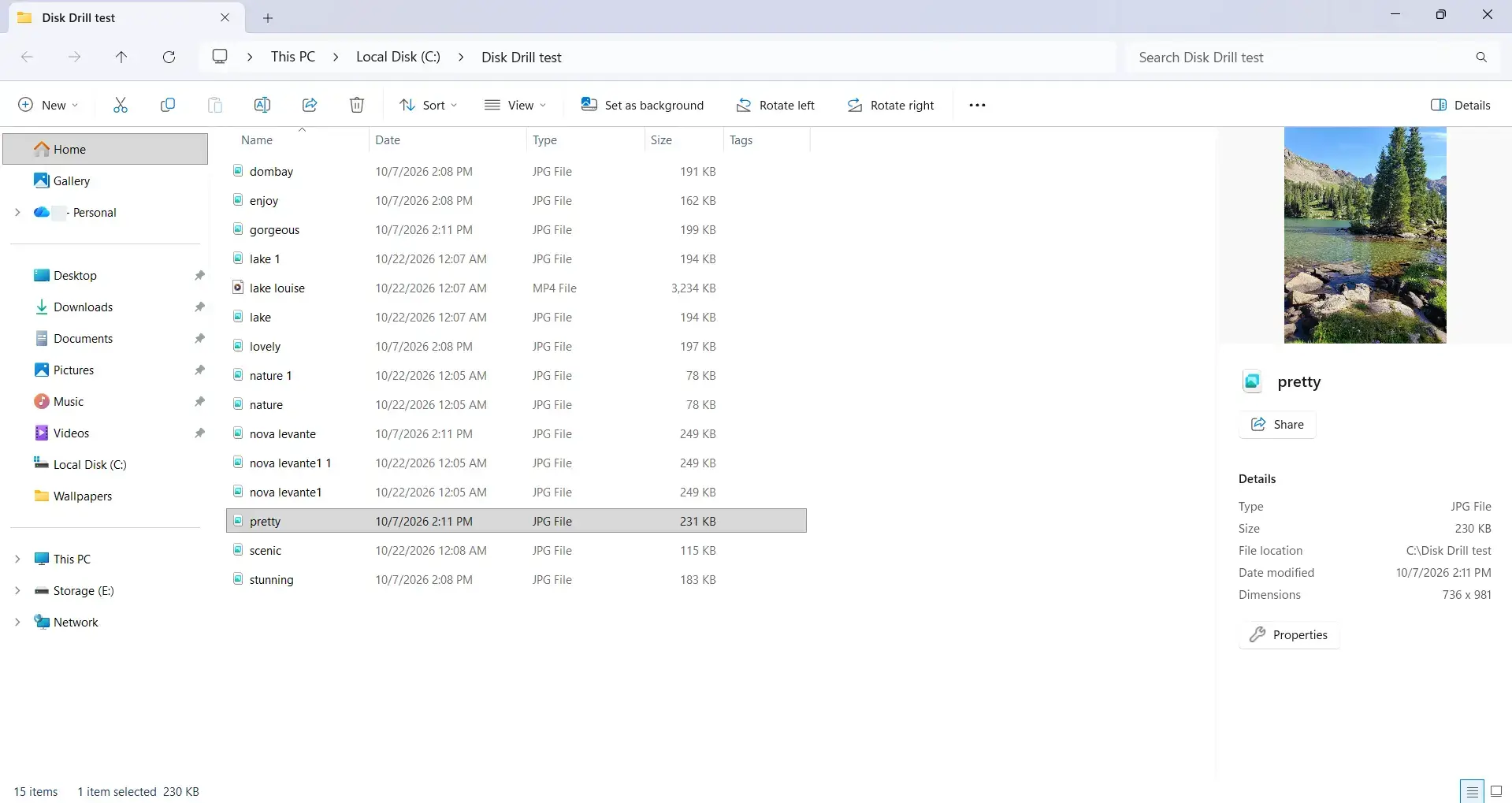
We consider this a good result for the selected photos and videos: the restored copies work, and the preview helps us choose files before saving them.
Recovery After Quick Formatting
A second check examined formatted drive recovery. We copied the same 15 working files back to the flash drive, quick-formatted it, and ran a new scan. We found and restored all 15 to the SSD, then confirmed that the photos opened and the videos played. With a known starting set, that is a 100% recovery result for this test.
The successful results give us confidence in the program for these two scenarios on the tested USB drive. A separate Advanced Camera Recovery scan was unnecessary here: the MP4 files already played correctly after recovery, and the test used general USB storage rather than original camera media.
Additional Features and Their Practical Value
We also see practical value in the following tools. These were not part of the recovery tests above; the assessment below considers their documented functions:
- Byte-to-byte Backup creates a disk image that can be scanned in place of the original device. We see its main advantage in being able to repeat recovery attempts without repeatedly scanning the source. For hard drive data recovery, this is particularly useful when preserving the drive’s current contents is a priority. The image needs storage space on a separate device.
- Recovery Vault, available under Data Protection, records information such as filenames and original locations to assist with subsequent recovery. It must be enabled before deletion. The saved information helps restore original filenames and folders. We see it as a useful addition to backups, since it stores metadata rather than copies of the files themselves.
- S.M.A.R.T. Monitoring shows health information reported by compatible drives, such as temperature and warning indicators. In our view, its value is in making potential problems easier to notice before another recovery is needed. The available readings depend on the drive and connection.
- Clean Up shows which files and folders occupy disk space. We see it as a convenient maintenance tool for reviewing large items, rather than a recovery function. Any cleanup belongs after lost files have been recovered, since deleting or changing data on the source can interfere with recovery.
Disk Drill Free vs Pro: Pricing and Value
Our review of Disk Drill Pro focuses on what the paid license adds and when the upgrade makes sense. Basic provides scanning, file previews, and up to 100 MB of free recovery on Windows. On macOS, restoring deleted files generally requires Pro. How much Disk Drill costs depends on the license, with free, annual, and lifetime options compared below.
Feature | Basic for Windows | Basic for macOS | Pro |
Price in USD | Free | Free | $89/year or $149 for a lifetime license |
Scanning and preview | Included | Included | Included |
Deleted-file recovery | Up to 100 MB | Requires Pro, except for files protected by Guaranteed Recovery before deletion. | Unlimited |
Byte-to-byte Backup | Included | Included | Included |
Data protection | Recovery Vault | Guaranteed Recovery | Included |
The Disk Drill Pro price was checked in November 2026 and may vary by region and applicable taxes.
We completed both recovery tests with Basic. Free scanning and previews make it possible to inspect the results before purchasing Pro, while the Windows recovery allowance also permits a small selection of files to be saved and checked.
The choice of license depends on what needs to be recovered and whether further use is expected. Recovering a specific set of files once may justify the lower upfront cost of an annual plan, while recurring recovery needs make the lifetime license more economical than two annual payments. The subscription renews automatically unless cancelled and includes updates while active; the lifetime license includes future updates without recurring fees. Both Pro options cover Windows and macOS for one user on up to three devices.
Disk Drill Pros and Cons
Here are the strengths we particularly appreciate and the limitations we would weigh before choosing a license.
Pros
- Successful recovery in both tests. All 15 selected JPG and MP4 files were recovered after deletion and again after quick formatting. The images opened correctly, and the videos played without errors.
- Useful previews and filters. The results browser made it possible to inspect photographs and narrow down the file list before recovery.
- Evaluation before purchase. Free scanning, previews, and limited Windows recovery provide a practical way to assess results before upgrading.
- Additional tools included in Basic. Drive imaging and Recovery Vault add value without requiring a Pro license.
- Cross-platform Pro license. One license covers Windows and macOS for one user on up to three devices.
Cons
- Small free recovery allowance. The 100 MB Windows limit is restrictive for larger videos or photo collections.
- No short-term Pro license. The shortest paid option is a full year, even when only a single recovery is needed.
Verdict: Is Disk Drill Worth It?
When important files disappear, and no backup is available, we think Disk Drill is worth trying. Disk Drill is a good choice for users who want a straightforward recovery process and the ability to preview files before paying. Pro becomes worthwhile when important files can be previewed successfully but restoring them requires a paid license.
We are pleased with the recovery results and find the program easy to work with. Recovery still depends on the drive’s condition, how the files were lost, and whether the original data has been overwritten.
FAQ to add at the end
Is Disk Drill safe to use?
Disk Drill is a legitimate recovery program when downloaded from the official CleverFiles website. Its developer says scans run in read-only mode. To reduce the chance of overwriting lost data, install the program and save recovered files on a different drive from the one you’re scanning. CleverFiles safety FAQ
Is Disk Drill free?
Disk Drill’s Windows version lets you scan and preview files for free, and recover up to 100 MB without paying. The available free recovery differs by operating system, so check the current license details for your version before relying on it. CleverFiles free recovery details
Can Disk Drill recover files after a quick format?
It can find files after some quick formats if the storage device is still readable and the data has not been overwritten. In this review’s test, Disk Drill recovered the 15 known JPG and MP4 files that had been copied to a USB drive before it was quick-formatted. That result applies to this test, not every formatted drive.
Did Disk Drill recover the files in your test?
Yes. In the deletion test, all 15 selected files were recovered and opened or played successfully. The review also reports that the same 15 files were recovered after a quick format. These are results for the tested USB drive and selected files, not a guarantee for other devices or data-loss situations.
Where should I save recovered files?
Save them to a different physical drive from the one being scanned. This helps avoid writing new data over files that may still be recoverable. In the review’s test, recovered files were saved to the computer’s internal SSD rather than back to the USB source.
Is Disk Drill Pro worth paying for?
It depends on whether the files you need can be found and previewed, and whether the free recovery allowance is enough. The review recommends scanning and checking the results before deciding whether to upgrade; its tests were completed with Disk Drill Basic.