A laptop can make a game look excellent while making a simple move awkward. The screen is clear, the animation is smooth, yet dragging one card across the board feels fiddly. Before blaming the computer, separate the game’s rules from how you control it.
For a concrete comparison, open PlaySolitaire, which puts a Klondike card game in your browser and offers several ways to move the same cards. Use this board for the checks below. Keeping the game constant makes it easier to notice what changes when you use a mouse, a trackpad or the screen itself.
Choosing between a mouse, touchscreen or trackpad for browser card games mostly comes down to accuracy, visibility and how the game handles card movement. The best control method is the one that lets you select and place cards reliably without making ordinary moves unnecessarily difficult.
Start with a move you know is legal
Find a straightforward move before comparing controls. In Klondike’s seven columns, a red seven can go on a black eight. A red seven cannot go on another red eight. If the game refuses that second move, switching input devices will not change the rule.

The distinction matters when troubleshooting. A card that returns to its starting place might indicate an invalid destination rather than a missed gesture. Read the rules, identify an available move, then try to complete it deliberately. You now have a small, repeatable task instead of a vague feeling that the game is difficult to control.
A trackpad needs the right gesture
Moving the pointer and dragging an object are different actions. Sliding a finger across a trackpad usually moves the pointer. Dragging also requires the device to register a held selection. Microsoft’s Surface instructions, for example, describe holding the left touchpad button while moving a finger, or tapping and immediately holding before dragging.
The details depend on your hardware and settings. Try a familiar desktop action first, then return to the card board. If normal pointer movement feels fine but dragging doesn’t, check the gesture you are using before changing several settings at once.
This is why input deserves attention alongside performance. Cryovex’s HP Victus 16 review considers the touchpad separately from the laptop’s gaming results. A graphics specification tells you little about whether you will enjoy moving cards with that particular pad.
What changes when you use a mouse?
A mouse separates pointer movement from the surface of the laptop, which can make the familiar click-and-drag action easier to recognise. Instead of coordinating a trackpad gesture, you can press the primary mouse button, move the pointer towards the destination and release it.
That does not make a mouse automatically better for every browser card game. If the game supports selecting a card and then selecting its destination, precise dragging may not be necessary at all. The useful comparison is whether the mouse reduces missed selections or unwanted card movements compared with the controls already available on your device.
Check whether dragging is necessary
The board used here has a setting called 1-Tap Move. When it is enabled, clicking or tapping a card moves it to an available place. Turning it off lets you select the card, and then its destination. Dragging is another way to choose where a card goes.
Those options are worth comparing because they ask different things of your hands. Selecting a card and then selecting a destination avoids maintaining pressure throughout a long movement. W3C’s accessibility guidance on dragging describes this distinction and explains why some people find sustained dragging difficult.
For solitaire, destination choice can also matter strategically. An available move is not necessarily the move you intended. If automatic movement feels unpredictable, try selecting both ends of the move yourself before deciding that your mouse or touchscreen is the problem.
Touch changes what you can see
On a touchscreen, your finger occupies some of the area you are trying to inspect. Watch what happens near the destination, while moving a card. Can you still distinguish the rank and suit, or are you relying on the position you remember beneath your fingertip?
Try the available selection mode as well as dragging. The better method is the one that lets you see and choose accurately on your particular screen. A tablet stand, the way you hold the device and the amount of room given to the board can all change that experience.
Touch is useful for many tasks, but the task still determines the setup. Cryovex’s guide to working with a tablet explores this through document handling and annotation. A card board asks a different question: can you select a small object without losing sight of its destination?
Mouse vs trackpad vs touchscreen for browser card games
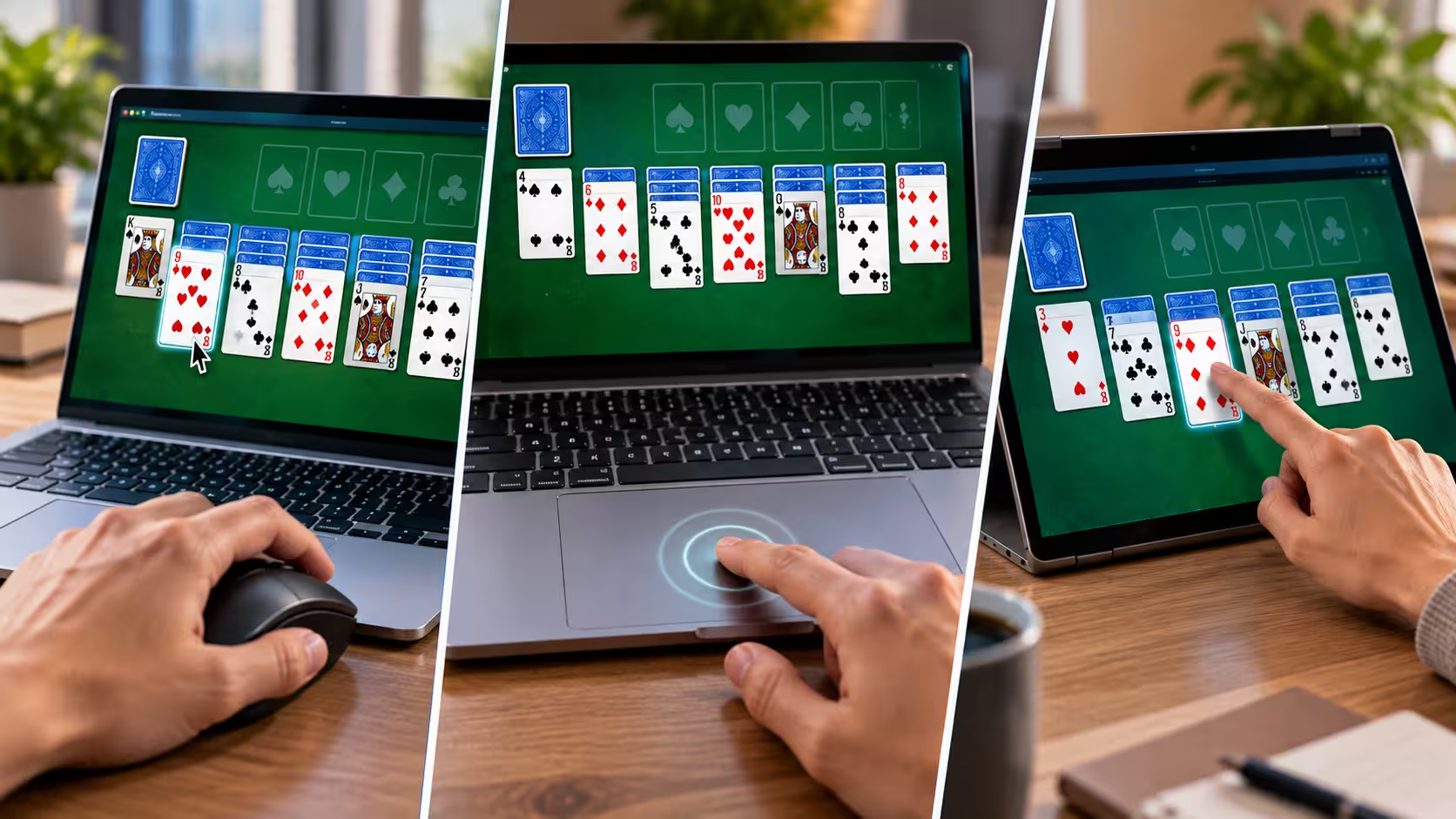
Each input method changes how you interact with the same card board. A mouse provides a conventional pointer-and-button approach, a trackpad keeps the controls built into the laptop, and a touchscreen lets you interact directly with the card on the display. The game’s available movement options can matter as much as the hardware itself.
If dragging feels awkward, first try any available tap or select-and-destination controls before changing devices. If selections are easy but long drags are difficult, compare the mouse and trackpad. If your finger obscures cards or their destinations, compare touch with a pointer-based method instead. The aim is to identify the part of the interaction that is causing difficulty.
| Input method | What to check | When to try another method |
|---|---|---|
| Mouse | Whether click-and-drag movements feel controlled | If dragging causes repeated unwanted movements |
| Trackpad | Whether the correct hold-and-drag gesture registers | If pointer movement works but dragging does not |
| Touchscreen | Whether your finger obscures the card or destination | If you cannot clearly see where the card will land |
| Keyboard | Whether focus and selection controls are comfortable | If pointer-based controls are difficult to use |
Compare comfort without racing the clock
Repeat a few moves with the controls you already have. On this board, Undo lets you take back a move, so you can compare ways of making it again. Notice repeated corrections, accidental selections and whether you can reach the controls comfortably.
You can also try the documented keyboard controls: arrow keys move around the board, Enter activates the focused card or space, and Escape cancels a selection. This gives you another way to separate a pointer problem from uncertainty about the game.
There is no need to turn the comparison into a speed test. The timer records elapsed play; it is not a deadline. Settle on the method that makes your intended move easy to carry out. That is a more useful result than choosing an input device because it sounds like the serious gamer’s option. For browser card games, there is therefore no single control method that will suit every player or device. Compare the mouse, trackpad and touchscreen using the same legal moves, and consider tap or keyboard controls where they are available. The best option is the one that lets you see, select and complete your intended moves consistently and comfortably.
Frequently Asked Questions
Is a mouse or trackpad better for browser card games?
Neither is automatically better for every browser card game. A mouse provides a familiar click-and-drag method, while a trackpad keeps the controls built into a laptop. Try the same legal card moves with each and compare missed selections, unwanted movements and overall comfort.
Can I play browser card games with a touchscreen?
Yes, when the game and browser support touch controls. Pay attention to whether your finger obscures the card or its destination while making a move. If dragging makes placement difficult to see, try the game’s tap or selection controls when they are available.
Why can’t I drag cards with my trackpad?
First check that the card can legally move to the selected destination. If the move is valid, make sure the trackpad is registering a held selection rather than ordinary pointer movement. Testing a familiar drag action outside the game can help distinguish a trackpad gesture problem from a game-specific issue.
Do browser card games require dragging?
Not necessarily. Browser card games can offer different ways to move cards. The example discussed in this guide includes 1-Tap Move, selection followed by destination selection, and dragging. Alternative controls can be useful when maintaining a drag is uncomfortable or unreliable.
Why does a card return to its original position?
One possible reason is that the attempted move is not legal under the rules of the card game. Test a move that you know is allowed before assuming there is a problem with your mouse, trackpad or touchscreen.
Can I play browser solitaire without a mouse?
Yes. Depending on the game, you may be able to use a trackpad, touchscreen, tap or selection controls, or keyboard navigation. The board discussed in this article also documents arrow-key navigation, Enter for activation and Escape for cancelling a selection.
What is the best control method for browser solitaire?
There is no single best method for every player and device. Compare controls using the same legal moves and look for accurate selection, clear visibility of the destination and comfortable movement. The most useful control method is the one that lets you make your intended moves consistently.